
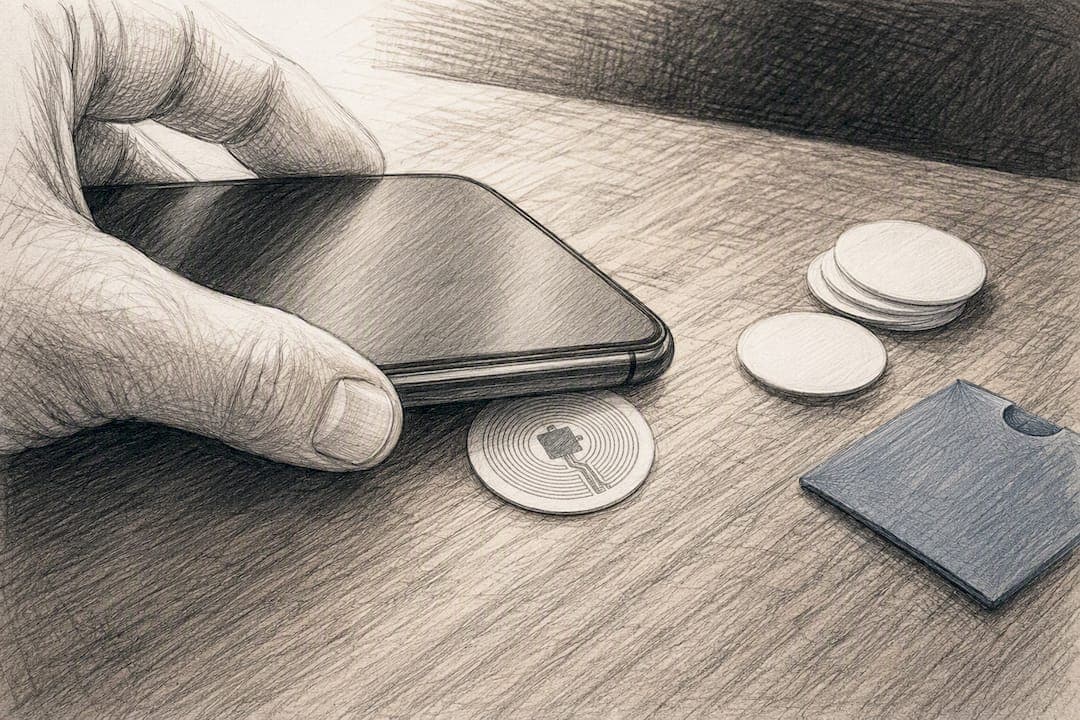
Yes — you can encode NFC tags with a modern Android phone, a supported iPhone, or a desktop reader. For one tag or a handful, your phone is the fastest path. For dozens or hundreds, a desktop reader with a write-and-verify loop saves you from wasted tags. Whichever you choose, always test a tag before you lock it.
TL;DR:
- NFC tags require proper NDEF formatting before encoding, and testing each tag immediately after writing helps confirm data accuracy and prevent failures.
- Android offers mature, flexible tools like NFC Tools and TagWriter, with straightforward steps involving turning on NFC, selecting record types, and careful alignment during tap.
- iPhone can write NFC tags from iPhone 7 and later using apps like NFC TagWriter, but the top antenna position and system limitations make alignment and background actions more challenging.
- For bulk or volume encoding, desktop NFC readers such as the ACR122U enable automated, reliable write-and-verify workflows that reduce errors associated with mobile manual writing.
- The longevity of NFC tags depends on environmental factors; outdoor exposure, moisture, and bending can cause failure, but data rewrites do not significantly degrade the chips' lifespan.
Table of Contents
- What Is NDEF, and What Can You Write to an NFC Tag?
- How Do You Encode NFC Tags on Android?
- Can You Write NFC Tags on an iPhone?
- Setting Up Desktop NFC Encoding for Bulk Projects
- Choosing the Right NFC Tag and Chip
- Why Do NFC Writes Fail, and How Do You Fix Them?
- How Do You Test, Verify, and Safely Lock a Batch of Tags?
- Encryption and Authentication: Security Practices for Encoded Tags
- How Do You Encode NFC Tags on iPhone Step by Step?
- Free vs. Paid NFC Encoding Apps: What's Worth Paying For?
- How Long Do Encoded NFC Tags Actually Last?
- Why We Chose Pre-Encoded Cards for Echo-Story Box
- Want NFC Story Cards Without the Setup Work?
- Where to Go for Official NFC Specs and Tools
- Sources
What Is NDEF, and What Can You Write to an NFC Tag?
NDEF (NFC Data Exchange Format) is the standard container every consumer NFC tag uses to hold information, and it's what your phone or reader is actually writing when you tap "save." Inside an NDEF message, you'll usually store one of a few record types: a URI (a web link), plain text, a vCard (contact info), or Wi‑Fi credentials that let someone join a network with a tap.
Some blank tags arrive without an NDEF capability container already set up, which means you have to format them before your first write attempt. NDEF defines this structure through TNF fields that map each record to its type, and most consumer apps handle the formatting step automatically the first time you use a fresh tag. If you're ever debugging a tag that reads as blank or corrupted, checking whether it's properly NDEF formatted is the first thing to look at, before you assume the chip itself failed.
How Do You Encode NFC Tags on Android?
Android has the most mature NFC toolset of any mobile platform, mainly because Google built native read/write support into the OS years ago. For small batches, NFC Tools and NFC TagWriter by NXP are the two apps worth your time. NFC Tools is the more flexible of the two, letting you stack multiple records on one tag. TagWriter is simpler and leans on NXP's own chip expertise, which matters if you're working with NTAG-family tags.
Here's the basic write process on Android:
- Turn on NFC in your phone's settings (usually under Connected Devices).
- Open your chosen app and select "Write" or "Add Record."
- Choose your record type: URL, text, contact, or Wi‑Fi.
- Enter your data and confirm.
- Hold the back of your phone flat against the tag, near the camera, and keep it still until the app confirms success.
- Re-scan the tag immediately to verify the data actually landed correctly.
The NFC antenna on most Android phones sits just below the camera module, not centered on the back of the phone, so some "failed" writes are due to misaligned taps.
Pro Tip: Rest your phone flat on a table with the tag underneath it instead of holding both in the air. Removing your own hand tremor from the equation cuts failed writes dramatically.
Can You Write NFC Tags on an iPhone?
Yes, but with more restrictions than Android. iPhone models from the iPhone 7 onward can write to NFC tags, provided they're running a compatible iOS version, but Apple's Core NFC framework limits what third-party apps can do compared to Android's more open NFC stack. You'll need an app to write, since there's no built-in system tool for it.
Recommended apps and quirks to know:
- NFC TagWriter by NXP handles most common record types and is a safe first choice for NTAG-based tags.
- Smart NFC offers a slightly more visual interface if you're encoding several different record types.
- Older iPads and some earlier iPhone models can't write at all, only read, so a desktop or Android device may be your only option for those.
- The NFC antenna on an iPhone sits near the top of the back panel, not the center, which trips up a lot of first-time users.
Open your app, grant NFC permissions when prompted, enter your payload, then hold the top edge of the phone steady against the tag until you get a confirmation tone or message.
Setting Up Desktop NFC Encoding for Bulk Projects
Phones work fine for a few tags, but once you're encoding fifty, a hundred, or a thousand, a desktop reader changes the math entirely. Professionals doing volume work lean on desktop encode-and-verify workflows precisely because mounted, stationary readers eliminate the hand-tremor errors that plague mobile batches.
The most common hardware choice is the ACR122U family, along with the ACR1252U and uTrust readers. Each connects over USB and needs a PC/SC driver installed before your software will even see it.
For software, NFC Tools has a desktop version that reads and writes most common chips, including NTAG, MIFARE Ultralight, and ICODE families. The GoToTags Desktop App is worth a look if you're managing larger, CSV-driven jobs where each tag needs different data (sequential IDs, unique URLs, or per-item variables).
A few habits separate clean batches from messy ones:
- Mount your reader in a fixture rather than holding tags to it by hand.
- Build in an automated read-back step after every write, not just spot checks.
- Export your write log so you have a record of exactly what went on each tag.
- For variable data, drive the process from a CSV file instead of retyping values.
Choosing the Right NFC Tag and Chip
Not every tag fits every project, and picking the wrong chip early on causes headaches later. NTAG213 is the default starting point for most personal and small-business projects. It has enough memory for a URL or short text record, it's inexpensive, and nearly every app and reader supports it out of the box.
If you need to store more data, a vCard with a photo reference or a longer text block, step up to NTAG215 or NTAG216, which hold significantly more user memory. MIFARE variants show up in transit and access-control contexts but are overkill for a simple link or contact card.
A few practical notes on selection:
- On-metal tags use a spacer layer to prevent the metal surface from killing the signal; standard tags mostly fail near metal.
- Stickers, cards, and keyfobs all use similar chips inside, so form factor is about durability and mounting, not capability.
- Favor tags carrying NFC Forum certification over unbranded bulk tags, since certified tags are guaranteed to meet the interoperability specs your app expects.
- Always check your app's or reader's compatibility list before ordering a large batch of an unfamiliar chip.
Why Do NFC Writes Fail, and How Do You Fix Them?
Failed writes fall into three buckets: RF interference, software or format errors, and physical tag problems. Most failures trace back to interference and misalignment, not defective tags, which is good news because it means the fix is usually behavioral, not a return-and-replace situation.
Work through these steps in order when a write fails:
- Hold the device or tag completely still. Movement during the write is the single most common cause of failure.
- Move away from metal surfaces, other NFC devices, and wireless chargers that can create RF noise.
- If the tag won't accept any write, try formatting it to NDEF again, since some blank stock ships without a proper capability container.
- Test the same tag with a second device or app to rule out a software bug versus a hardware fault.
- If a tag consistently fails after multiple clean attempts, retire it. Don't keep forcing writes on a chip that may already be partially corrupted.
Movement during encoding is worth calling out on its own: holding the antenna steady against the tag is the leading factor separating clean writes from partial, corrupted ones, and a partial write can damage a tag's capability container badly enough that it becomes permanently unreadable. That's exactly why mounted, stationary readers matter so much once you're past a handful of tags.
How Do You Test, Verify, and Safely Lock a Batch of Tags?
Treat your first few tags in any project as a test batch, not the real thing. Write them, read them back immediately, and confirm the data matches exactly what you intended before you commit to the full run.
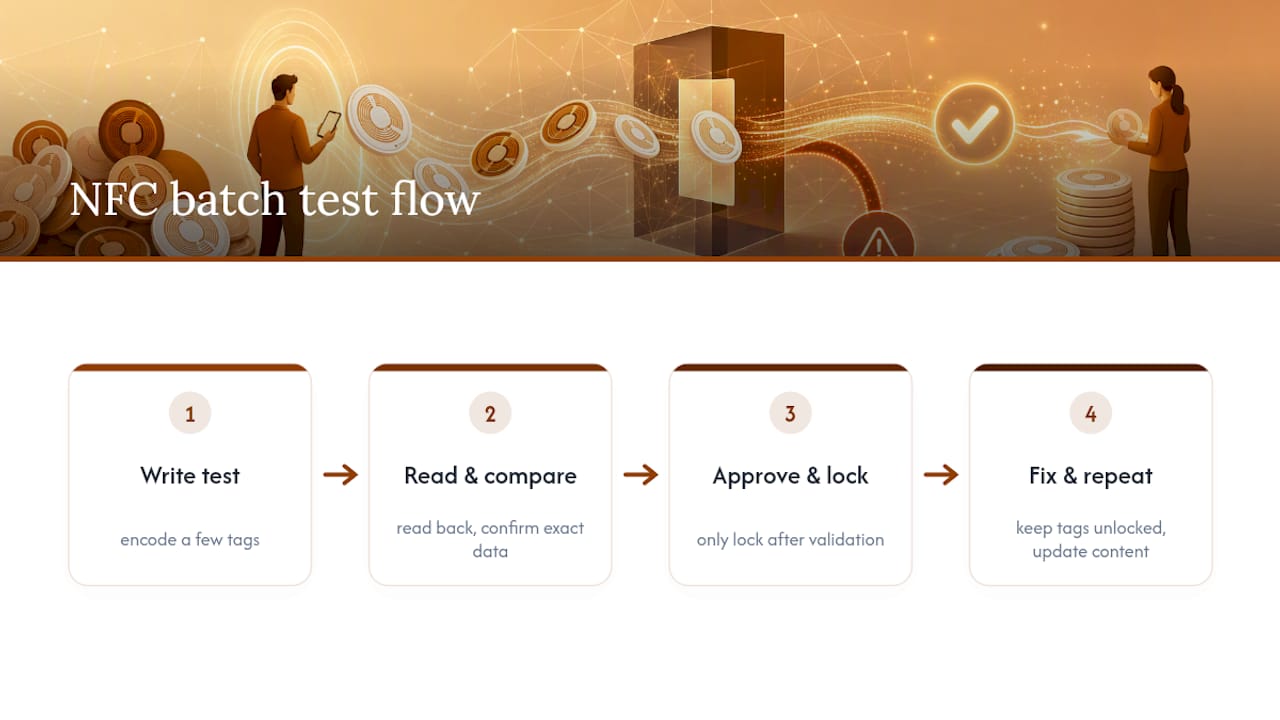
Keep every tag unlocked while you're still iterating on content. Lock-bits are permanent: once a tag is set to read-only, there's no undoing it, even if you catch a typo five minutes later. Only apply a permanent lock after you've validated the final configuration on a sample and you're confident the content will never need to change.
If you think you might need to update content later, a password-protected tag is the smarter middle ground. It blocks casual tampering without the finality of a hard lock. Document what each batch contains, and keep a few spare blank tags on hand for replacements.
Encryption and Authentication: Security Practices for Encoded Tags
Most consumer NFC projects, a link on a card, a contact tag, a Wi‑Fi tag for guests, don't need heavy security. But if your tag will carry anything sensitive, or if you're worried about someone cloning or altering it, a few options are worth knowing.
Password protection is the baseline step up from an open tag. Many NTAG chips support a configurable password that blocks writes (and optionally reads) unless the correct code is presented. This is reversible protection: you can update the password or remove it later, which makes it a better fit than a permanent lock for anything you expect to touch again.
For higher-security use cases, some chip families support cryptographic authentication, where the tag and reader exchange a challenge and response before any data transfer happens. This prevents a cloned tag from working even if someone copies the raw bytes off the original. It's more setup than most personal projects need, and it usually requires chips beyond the basic NTAG213 baseline.
A simple rule of thumb: match your protection level to what's actually at stake. A tag linking to a family photo album doesn't need authentication. A tag controlling access to a building or tied to a payment flow does. Whatever you choose, avoid mixing an unprotected tag with sensitive data just because it was the cheapest option in the multipack. And never treat a permanent lock as a security feature. It stops edits, not cloning.
How Do You Encode NFC Tags on iPhone Step by Step?
Because Apple locked down direct hardware access for years, a lot of the guidance floating around is outdated. Here's what actually works now. First, confirm your device qualifies: iPhone 7 or later, running a reasonably current iOS version. Older iPads and some budget iPhone models can read tags but can't write them at all, so if you're on one of those, you'll need to switch to an Android phone or a desktop reader instead.
Download NFC TagWriter by NXP or Smart NFC from the App Store. Open the app and grant NFC permissions the first time it asks. Both apps walk you through selecting a record type, URL, text, contact, or Wi‑Fi, and entering your data.
The workaround most people miss: the iPhone's NFC antenna sits near the top back edge, not the center, so hold that specific spot flat against the tag rather than pressing the whole phone down. Keep it still until you hear the confirmation tone or see the success message on screen, usually one to two seconds.
One more limitation worth flagging: unlike Android, iPhones generally can't background-scan and auto-launch actions from every tag type without extra setup, and write access can behave inconsistently across iOS updates. If an app suddenly stops writing after an iOS update, check for an app update before assuming your tag or phone broke.
Free vs. Paid NFC Encoding Apps: What's Worth Paying For?
Most people can do everything they need with a free app. NFC Tools' free tier covers reading, basic writing, and simple record types, which is plenty for a one-off project like a Wi‑Fi tag or a business card link. The tradeoff is usually a cap on saved templates, some ads, or a limit on how many records you can batch in one session.
Paid tiers and dedicated business tools earn their keep once you're doing repeat or bulk work. Features you typically unlock include CSV-driven batch writing, custom branding on the app interface, removal of record-count limits, and sometimes password-protection tools bundled in rather than requiring a separate step.
The GoToTags Desktop App leans toward the paid, business-focused end of that spectrum, and it makes sense there: if you're encoding hundreds of tags with unique sequential data, the time saved from automation easily outweighs a modest license fee.
For a family project, a classroom set of tags, or a handful of custom links, stick with the free tier of NFC Tools or NXP's TagWriter. Save the paid tools for when you're running encoding as a repeated part of a business process, not a one-time task.
How Long Do Encoded NFC Tags Actually Last?
NFC chips themselves are largely passive and don't degrade the way batteries or moving parts do, but the tag's physical housing and the environment it lives in absolutely affect how long it stays readable. A card or sticker left in direct sun and heat will crack or delaminate long before the chip inside fails.
Moisture is the more common threat for encoded tags. Standard paper-backed stickers can absorb humidity and start to peel at the edges within months if they're used outdoors or on frequently handled items. If you're placing a tag somewhere it'll face weather, look for tags rated for outdoor use, or laminate a standard tag before mounting it.
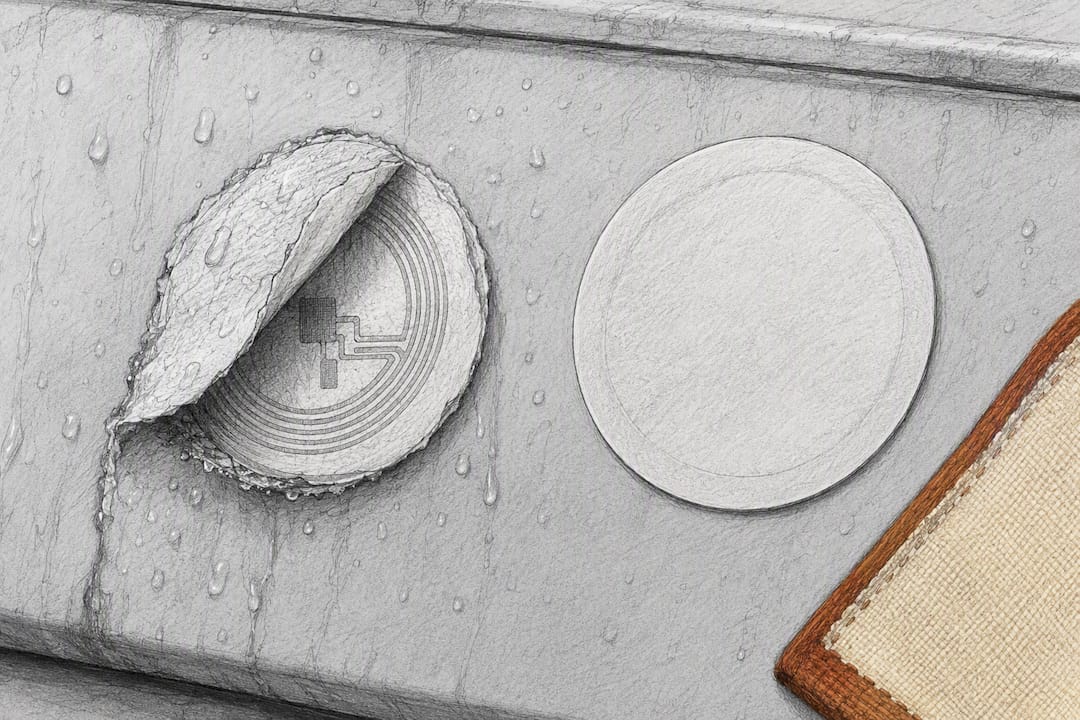
Physical flexing matters too. Tags embedded in cards that get bent repeatedly, tucked in a wallet, run through a washing machine in a pocket, are more likely to develop a hairline break in the antenna coil than tags mounted flat on a rigid surface. That kind of damage often shows up as intermittent reads before the tag fails completely, which is a useful early warning if you're monitoring a deployed batch.
Rewriting a tag's data doesn't meaningfully wear it out. NFC memory cells handle tens of thousands of write cycles before any real degradation, so a tag you update occasionally for a rotating project will likely outlast the card or sticker it's mounted on.
Why We Chose Pre-Encoded Cards for Echo-Story Box
We build Echo-Story Box around a simple idea: a child taps a card, and a story starts. No setup, no chance of a misfire, no moment where a kid taps a card and nothing happens because a write failed weeks earlier.
That's why our story cards come pre-encoded. DIY encoding is genuinely worth learning if you want to record a grandparent's voice onto a blank card or experiment with a personalized message. But for the cards your child uses daily, we'd rather remove that risk entirely. If you're curious about building your own setup, our homeschool storytelling guides are a good place to start.
— Bob
Want NFC Story Cards Without the Setup Work?
Encoding your own tags is a satisfying project, but it does mean testing batches, watching for failed writes, and being careful about lock-bits before you're sure everything works. If you'd rather skip that and get straight to story time, some story boxes ship with pre-encoded, ready-to-tap cards, so there's no risk of a bricked tag or a mismatched record showing up mid-story.
You still get personalization. Family voice recordings, custom character names, and faith-based or educational story sets are all available without you touching a single line of NDEF data. If you're building your own tags for a side project and want a stable link to encode, a tool like a QR code generator can help you create a short, reliable URL first. But for the stories your family listens to every night, visit the Echo-Story Box story card library and pick a starter pack to get tapping right away.
Where to Go for Official NFC Specs and Tools
For specification-level detail, check the NFC Forum for certified tag standards, Android's NFC developer docs for API behavior, and NXP's TagWriter app page for chip-specific write guidance.